
How do I schedule text messages to be sent?
Scheduling a text from the Communicator
Section titled “Scheduling a text from the Communicator”To schedule a single text message:
- Navigate to Apps → Communicator
- Open an existing conversation or start a new message
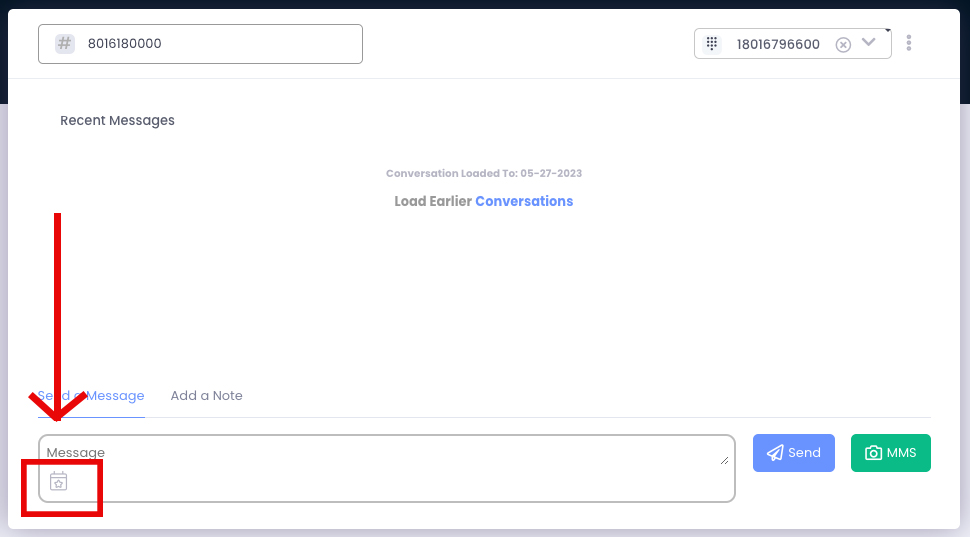
- Click the calendar icon with a star in the message field
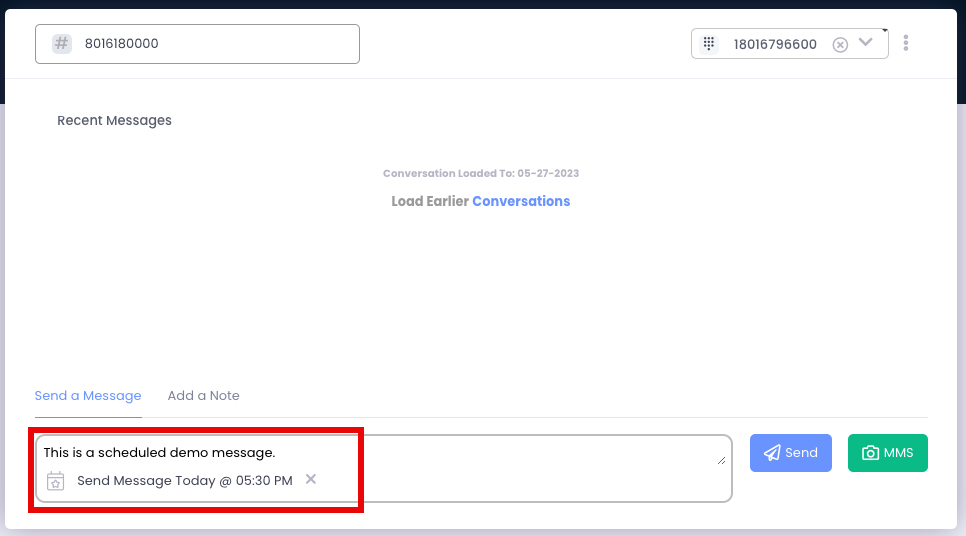
- Enter the desired send date and time, optionally enabling a repeat toggle
- Select Schedule SMS6. Type your message and clickSend
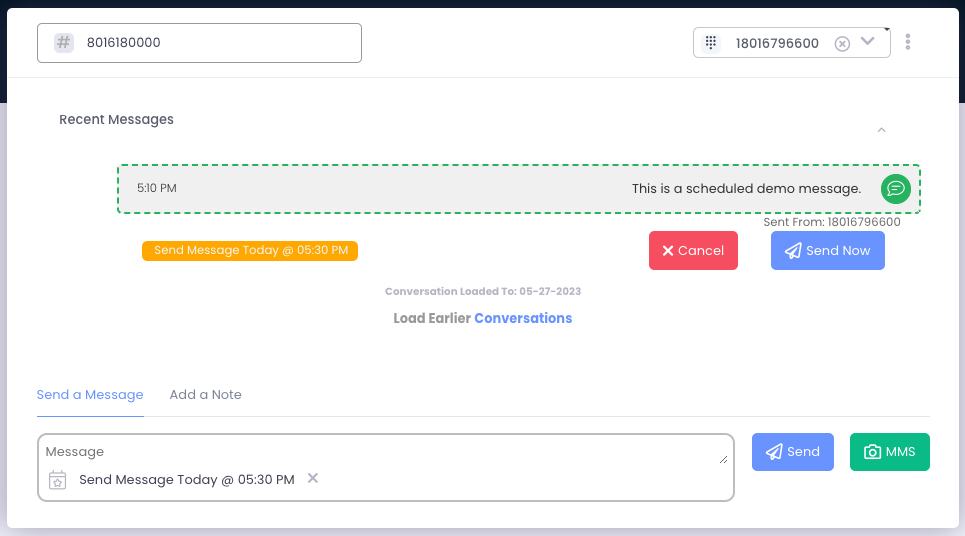
Once sent, scheduled messages display “a dotted green border around it” and provide options to cancel or manually trigger delivery.
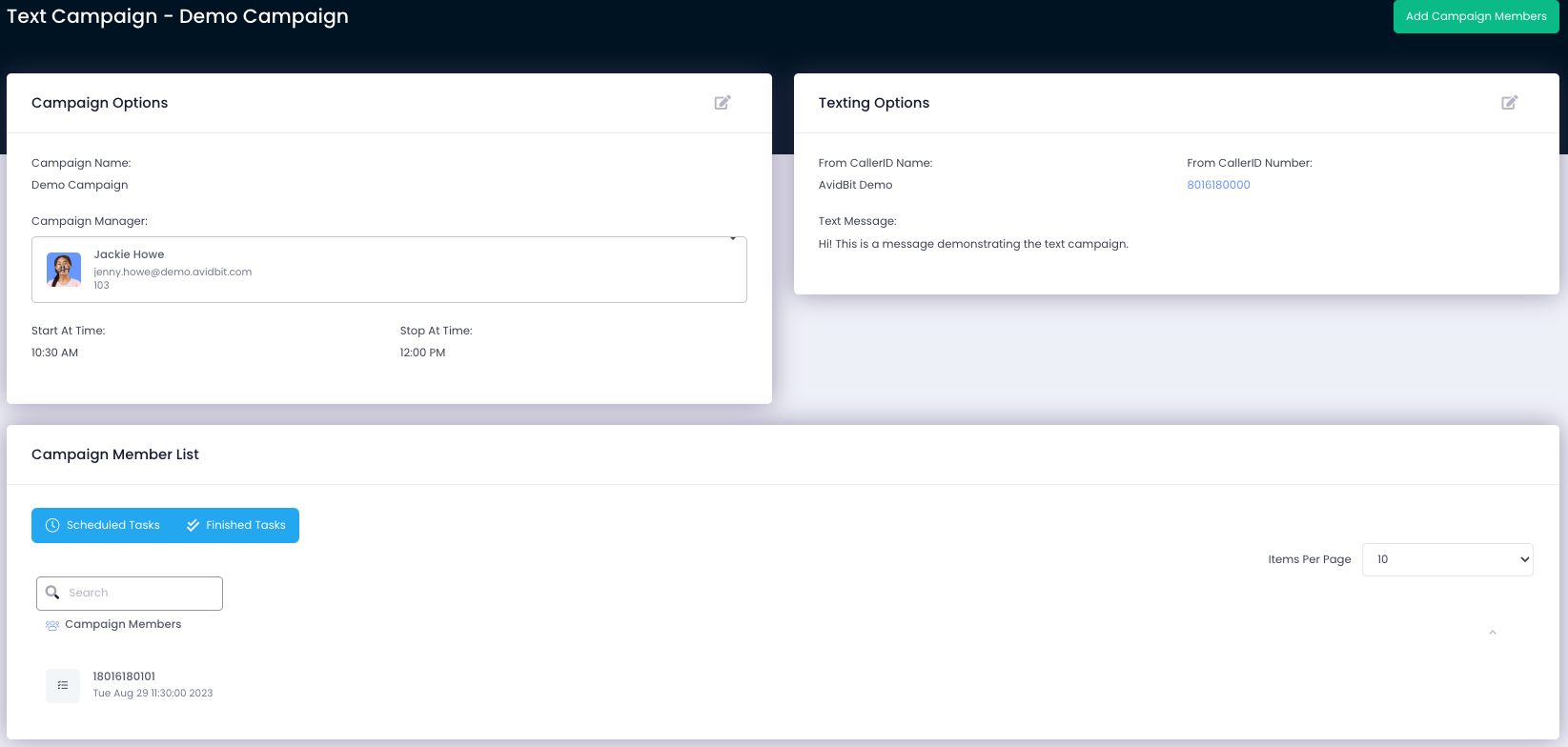
Setting up a texting campaign
Section titled “Setting up a texting campaign”For sending messages to multiple recipients simultaneously:
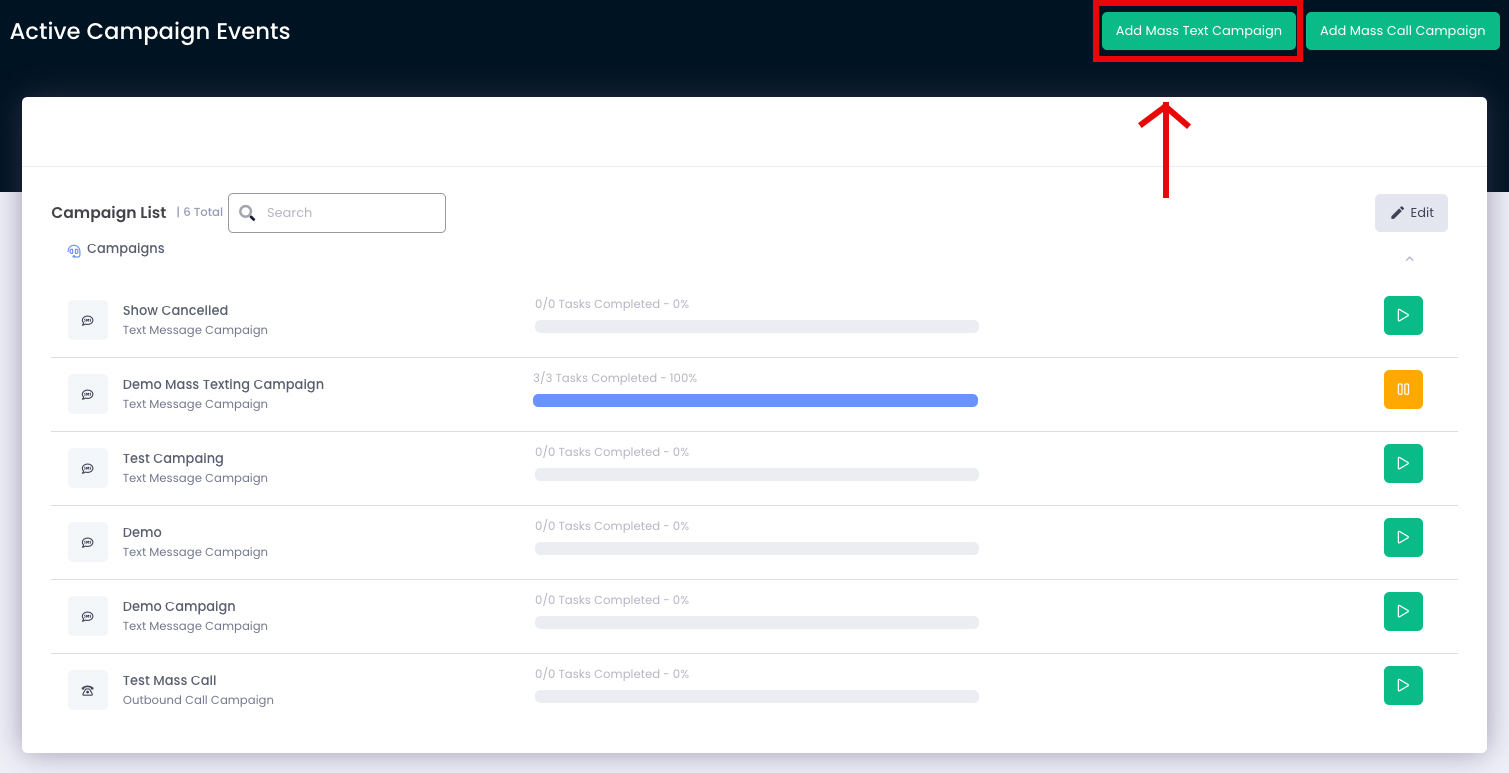
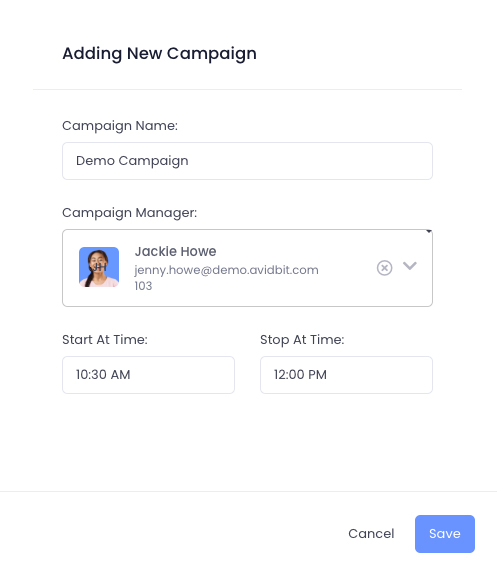
- Go to Apps → Scheduled Campaigns2. SelectAdd Mass Text Campaign
- Provide a campaign name, select a manager, and set start/end times
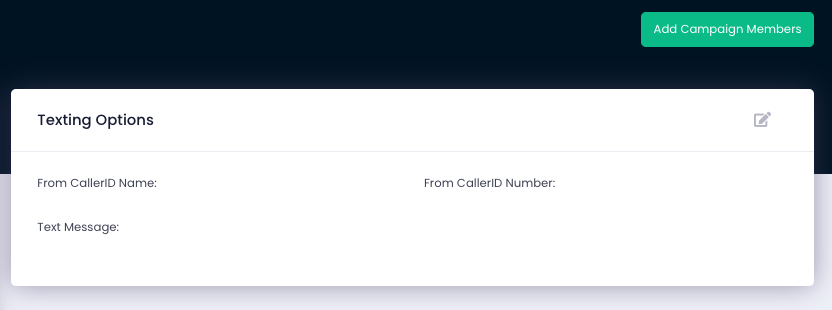
- Edit the ‘Texting Options’ section with:
- From CallerID Name
- From CallerID Number (must support texting)
- Text Message (maximum 150 characters)
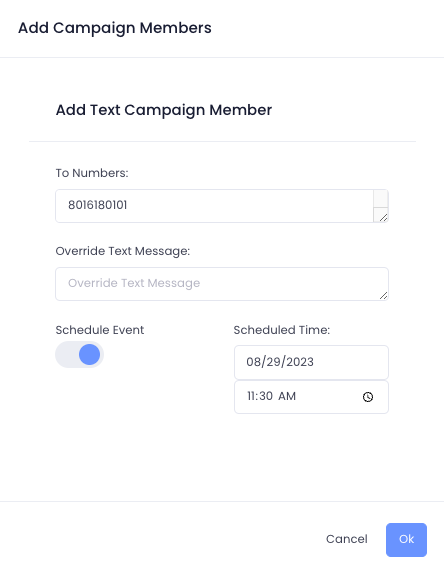
- Click Add Campaign Members and enter phone numbers in CSV format (e.g., 1234567890, 8015550000)
- Toggle Schedule to set a specific send date/time if needed
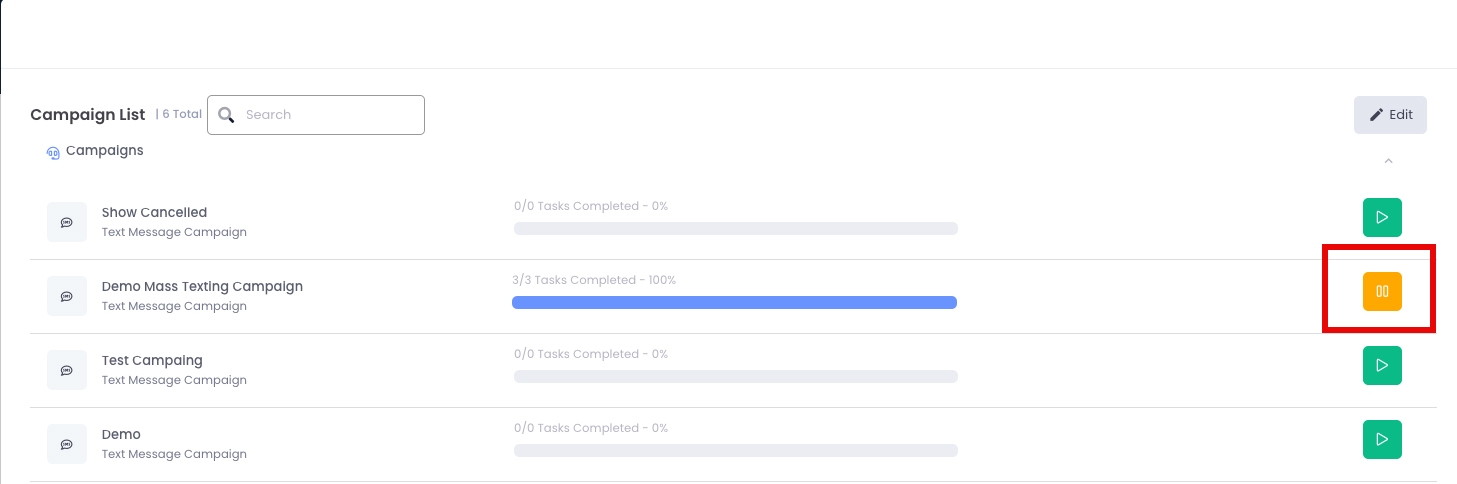
- Navigate back to Scheduled Campaigns and click the green play button to activate