

How do I turn on call recording?
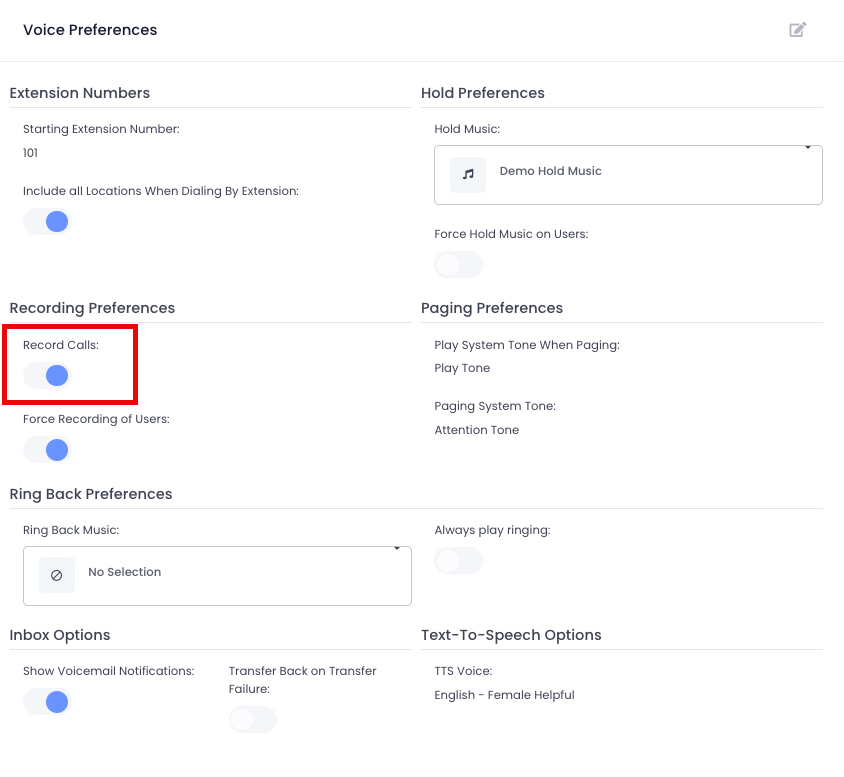
Call recording for the entire location
Section titled “Call recording for the entire location”- From the top toolbar select Settings2. Under theAccountcategory, selectLocations
- Select the location you wish to turn call recording on for
- In the left pane, navigate to Voice
- Click the edit button in the top right corner of ‘Voice Preferences’
- Toggle ON ‘Record Calls’
- Press Save at the bottom of the pane
Call recording for individual users
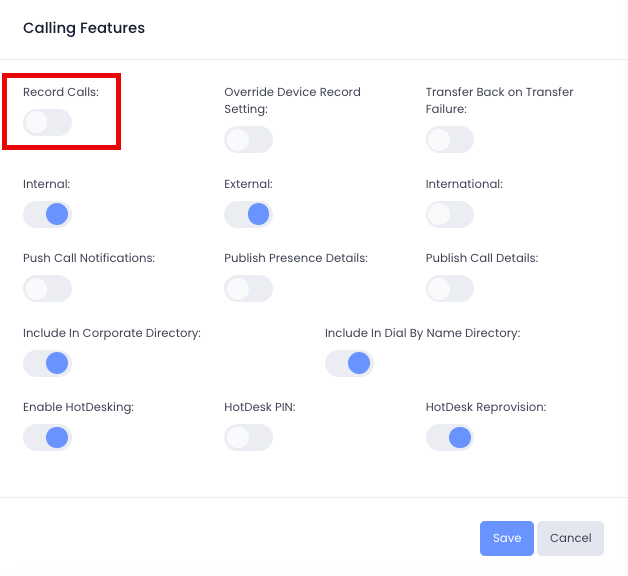
Section titled “Call recording for individual users”- From the top toolbar select Settings2. Under theAccountcategory, selectUsers
- Select the user you wish to turn call recording on for
- In the left pane, navigate to Voice
- Click the edit button in the top right corner of ‘Calling Features’
- Toggle ON ‘Record Calls’
- Press Save at the bottom of the pane
Call recording for a device
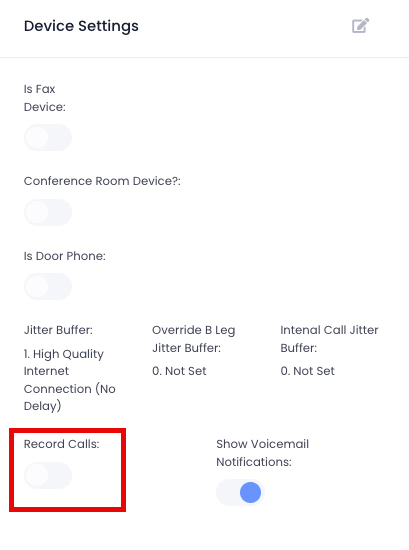
Section titled “Call recording for a device”- From the top toolbar select Settings2. Under theAccountcategory, selectDevices
- Select the device you wish to turn call recording on for
- In the left pane, navigate to Voice
- Click the edit button in the ‘Device Settings’ pane (you may need to scroll down to see this pane)
- Toggle ON ‘Record Calls’
Note:“Recorded calls can be found underApps → Call History”